
Function Graph Plotter
Plot mathematical and engineering functions instantly with this live Function Graph Plotter. Compare multiple equations, inspect roots and trends, adjust domain and scale settings, and generate a shareable link for your plotted results.
Presets and quick-start examples
Tap a preset to populate the first active row instantly.
⌄
Presets and quick-start examples
Tap a preset to populate the first active row instantly.
Accepted styles: y = x^2, sin(x), log(x), exp(x), abs(x), 2*x+1. Use explicit multiplication where possible.
Equation input section
Add one or more functions and compare them on the same graph.
⌄
Equation input section
Add one or more functions and compare them on the same graph.
Domain, range, and graph settings
Control the plotting window, sampling resolution, optional Y-axis limits, and scale behavior.
⌄
Domain, range, and graph settings
Control the plotting window, sampling resolution, optional Y-axis limits, and scale behavior.
Live graph results
Hover the graph to inspect coordinates, use the legend to toggle visibility, and compare how each function behaves over the selected domain.
Summary and interpretation
Roots, turning behavior, monotonic trends, symmetry, oscillation, and domain observations.
⌄
Summary and interpretation
Roots, turning behavior, monotonic trends, symmetry, oscillation, and domain observations.
Insights
Quick technical observations from the current Function Graph Plotter setup.
⌄
Insights
Quick technical observations from the current Function Graph Plotter setup.
- Enter a valid equation to generate insights.
Recommendations
Practical next steps to improve readability and comparison quality.
⌄
Recommendations
Practical next steps to improve readability and comparison quality.
- Try a preset such as Quadratic or Sine wave to explore the Function Graph Plotter features.
Comparison and scenario analysis
Understand whether multiple functions intersect, diverge, or oscillate differently.
⌄
Comparison and scenario analysis
Understand whether multiple functions intersect, diverge, or oscillate differently.
Formula and method
How the Function Graph Plotter works internally.
⌄
Formula and method
How the Function Graph Plotter works internally.
Copyable results and shareable link
Copy all important Function Graph Plotter inputs, assumptions, settings, and outputs in a clean text format, or generate a link that restores the full setup.
Did you like the tool?
Did we solve your problem?
Rate the tool
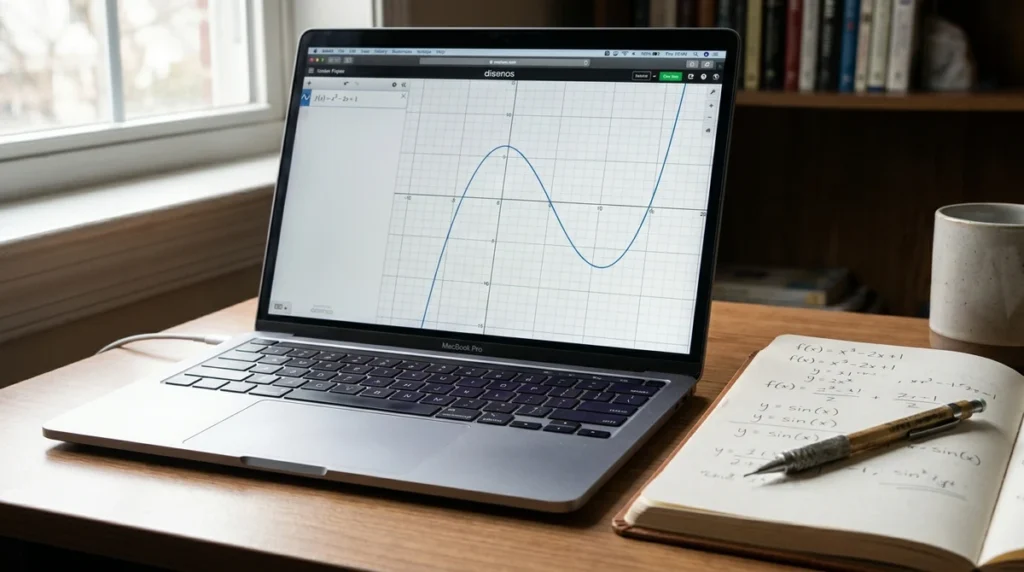
Why the Function Graph Plotter Is Useful
A reliable Function Graph Plotter does much more than draw a curve. It helps users move from abstract equations to visual understanding in seconds. Instead of guessing how a function behaves, you can see turning points, steep growth, oscillation, intercepts, and restricted regions immediately. That makes the Function Graph Plotter valuable for students, teachers, engineers, technicians, analysts, and anyone working with mathematical models.
In practical work, people often waste time rewriting equations, building spreadsheet columns, or checking calculator outputs point by point. A Function Graph Plotter reduces that effort by turning equations into clear visual results. It is especially helpful when you want to compare multiple functions on one graph, test different domains, or understand whether a small formula change creates a major difference in behavior.
💡 Quick value: A Function Graph Plotter helps users make faster and more confident decisions because trends become visible instead of hidden inside symbols.
What the Function Graph Plotter Does
This Function Graph Plotter is designed to plot mathematical and engineering-style functions online with live updates. You can enter expressions such as linear, polynomial, trigonometric, exponential, logarithmic, and absolute-value functions, then view the curve instantly over a chosen X-axis range. The tool also supports multiple equations at the same time, which makes side-by-side comparison much easier than manual plotting.
A good Function Graph Plotter should also do more than display a line. It should help users inspect roots, visible minima and maxima, domain restrictions, monotonic behavior, oscillation, and differences between several formulas. That is why this page is useful for both basic algebra practice and more advanced technical review. If you want to explore more graphing tools in the same category, you can also visit this internal graph plotter category page.
How the Function Graph Plotter Works
The Function Graph Plotter evaluates each equation over many X-values inside the domain you choose. For every sampled X-value, the tool calculates the corresponding Y-value and places that coordinate on the graph. When many points are evaluated and connected in sequence, the overall shape of the function becomes visible. This process is numerical graphing, and it is widely used because it is practical, fast, and flexible.
The quality of any Function Graph Plotter depends on the domain, plotting resolution, and handling of undefined values. For example, logarithmic functions require valid positive input in many cases, while tangent functions contain discontinuities. A strong plotting tool should skip invalid points, avoid misleading joins across gaps, and let users zoom into the region that matters most. This is exactly why changing graph settings can reveal details that are hidden in a wider view.
Formulas and Calculation Logic Behind the Function Graph Plotter
At its core, the Function Graph Plotter follows a simple coordinate rule: for each selected X-value, the tool computes y = f(x). If the function is linear, such as y = 2x + 3, the result is a straight line. If the function is quadratic, such as y = x², the result is a parabola. If the function is sinusoidal, such as y = sin(x), the graph repeats in a wave pattern. This means the Function Graph Plotter is essentially a fast coordinate generator with visual rendering.
The tool may also estimate roots numerically by detecting sign changes or near-zero values. It may identify visible maxima or minima by examining how the slope direction changes between neighboring points. This is useful in practice because many users want to know where the graph crosses the axis or where the curve changes direction, even if they do not perform symbolic differentiation by hand.
From a technical communication standpoint, graphing and mathematical notation should remain consistent with recognized quantity and symbol practices used in standards such as ISO 80000 for quantities and units and IEC 60027 for letter symbols in electrotechnology. If you want broader background on mathematical plotting and visualization, the graph of a function reference here provides useful general context.
How to Interpret Function Graph Plotter Results Correctly
When using a Function Graph Plotter, start by checking the overall shape before focusing on details. Look at whether the function rises, falls, oscillates, levels off, or contains gaps. Then inspect the axis crossings, because roots often represent important thresholds. After that, observe turning points, visible extrema, symmetry, and repeated patterns. This sequence gives a clearer interpretation than jumping straight to one number.
You should also read the graph together with the chosen domain and scale. A Function Graph Plotter can show very different behavior depending on the viewing window. A function may appear almost linear over a narrow interval but strongly curved over a wider interval. Logarithmic scale settings can also change the apparent pattern of growth or decay, so it is important to remember which axes are linear and which are logarithmic before drawing conclusions.
⚠ Interpretation tip: Never assume a root or turning point exists outside the visible window. The Function Graph Plotter only shows what falls inside the selected domain and valid scale conditions.
Practical Examples and Real-Life Use Cases for the Function Graph Plotter
A Function Graph Plotter is useful in classrooms, home study, offices, laboratories, workshops, and engineering environments. Students can use it to understand algebra and calculus visually. Teachers can use it to demonstrate how parameter changes alter a graph. Engineers and technicians can use it to inspect trends, compare response curves, or quickly review whether a model behaves as expected.
For example, in a home learning setting, a parent or student can use the Function Graph Plotter to compare x², x³, and |x| on one chart to understand how shape and symmetry differ. In an office or commercial setting, an analyst may visualize exponential growth and decay models to see how assumptions affect long-term outcomes. In industrial or workshop use, the same plotting logic can support quick review of calibration relationships, trend envelopes, simplified load curves, or sensor-response patterns before moving into more advanced software.
Common Mistakes to Avoid When Using the Function Graph Plotter
One common mistake is choosing an unsuitable viewing window. A Function Graph Plotter may appear to show no detail simply because the domain is too wide or too narrow. Another mistake is entering a function without understanding domain restrictions. For instance, logarithmic expressions and some rational forms may be undefined for part of the selected range. Users should also avoid very low resolution when plotting rapidly changing curves because fine features can be missed.
Another error is treating every visible crossing as a confirmed analytical solution. The Function Graph Plotter provides a practical numerical view, not a formal proof. That is why you should use the graph as a strong visual guide, then verify important values when accuracy is critical. For best results, test several domains, compare multiple functions carefully, and use clean labels so interpretation remains clear.
How the Function Graph Plotter Saves Time, Improves Efficiency, and Beats Manual Calculation
Manual plotting is slow because each point must be calculated and placed by hand. A Function Graph Plotter speeds up that process dramatically by evaluating hundreds of points in moments. This saves time during study, design review, troubleshooting, and presentation preparation. Instead of spending energy on repetitive arithmetic, users can focus on understanding behavior, checking assumptions, and comparing scenarios.
The Function Graph Plotter also helps reduce decision errors. Visual comparison often reveals mistakes that are difficult to catch in a list of numbers, such as unexpected asymptotic behavior, poor scale choice, or an incorrect sign in the equation. That makes the tool especially useful when better decisions depend on trend recognition rather than on one isolated value.
Manual plotting vs Function Graph Plotter
Manual method: slow, repetitive, harder to compare, easier to misread.
Function Graph Plotter: fast, visual, flexible, better for testing multiple scenarios and refining decisions.
Best Ways to Get More Value From the Function Graph Plotter
To get the most from the Function Graph Plotter, do not stop at a single graph. Try multiple domains, test alternative formulas, and compare similar functions with small coefficient changes. This helps you understand sensitivity and behavior, which is often more important than generating one static image. Users who spend a few extra minutes testing “what if” cases usually gain much better insight than users who plot only once.
A smart way to use the Function Graph Plotter is to build a short review routine: first plot the base equation, then compare one modified version, then narrow the domain around important features, and finally inspect the result on a suitable scale. This simple process turns the Function Graph Plotter from a basic graphing aid into a practical decision-support tool for learning, design, and technical interpretation.
Frequently Asked Questions
What is a Function Graph Plotter?
A Function Graph Plotter is an online tool that graphs mathematical and engineering functions such as linear, polynomial, trigonometric, exponential, logarithmic, and absolute-value equations over a selected range.
How does the Function Graph Plotter work?
The Function Graph Plotter evaluates the entered equation at many X-values within the chosen domain, calculates the corresponding Y-values, and plots those points to display the curve live on the graph.
Which formulas can the Function Graph Plotter handle?
The Function Graph Plotter can handle equations like y = x^2, 2*x+3, sin(x), cos(x), tan(x), exp(x), exp(-x), log(x), and abs(x), along with other valid function expressions entered in supported mathematical form.
Who should use the Function Graph Plotter?
The Function Graph Plotter is useful for students, teachers, engineers, technicians, analysts, and anyone who needs to visualize equations, compare curves, inspect roots, or understand function behavior quickly.
Can the Function Graph Plotter calculate load, current, power, or energy directly?
The Function Graph Plotter does not directly calculate electrical load, current, power, or energy unless you enter an equation that represents those quantities. It is mainly used to visualize and compare the behavior of mathematical relationships.
Can the Function Graph Plotter compare multiple functions at the same time?
Yes, the Function Graph Plotter supports multiple simultaneous functions, allowing users to compare different equations, study intersections, and test real-life scenarios on the same graph.
Why is the Function Graph Plotter useful?
The Function Graph Plotter is useful because it turns equations into clear visual results, helping users understand trends, roots, peaks, symmetry, and domain limits faster than manual plotting.